

The Import/Export Tool lets you bulk import players, teams, venues, staff, and officials from spreadsheets. Instead of creating records one by one, paste hundreds of rows and import them in seconds.
🎯 Key Features
- Bulk import – Players, teams, venues, staff, officials
- Insert or Update mode – Create new records or update existing ones
- Spreadsheet-friendly – Copy/paste from Excel, Google Sheets, LibreOffice
- Customizable columns – Reorder, show/hide columns to match your data
- Progress tracking – See import status for each row
- CSV export – Export players to CSV format
🚀 Getting Started
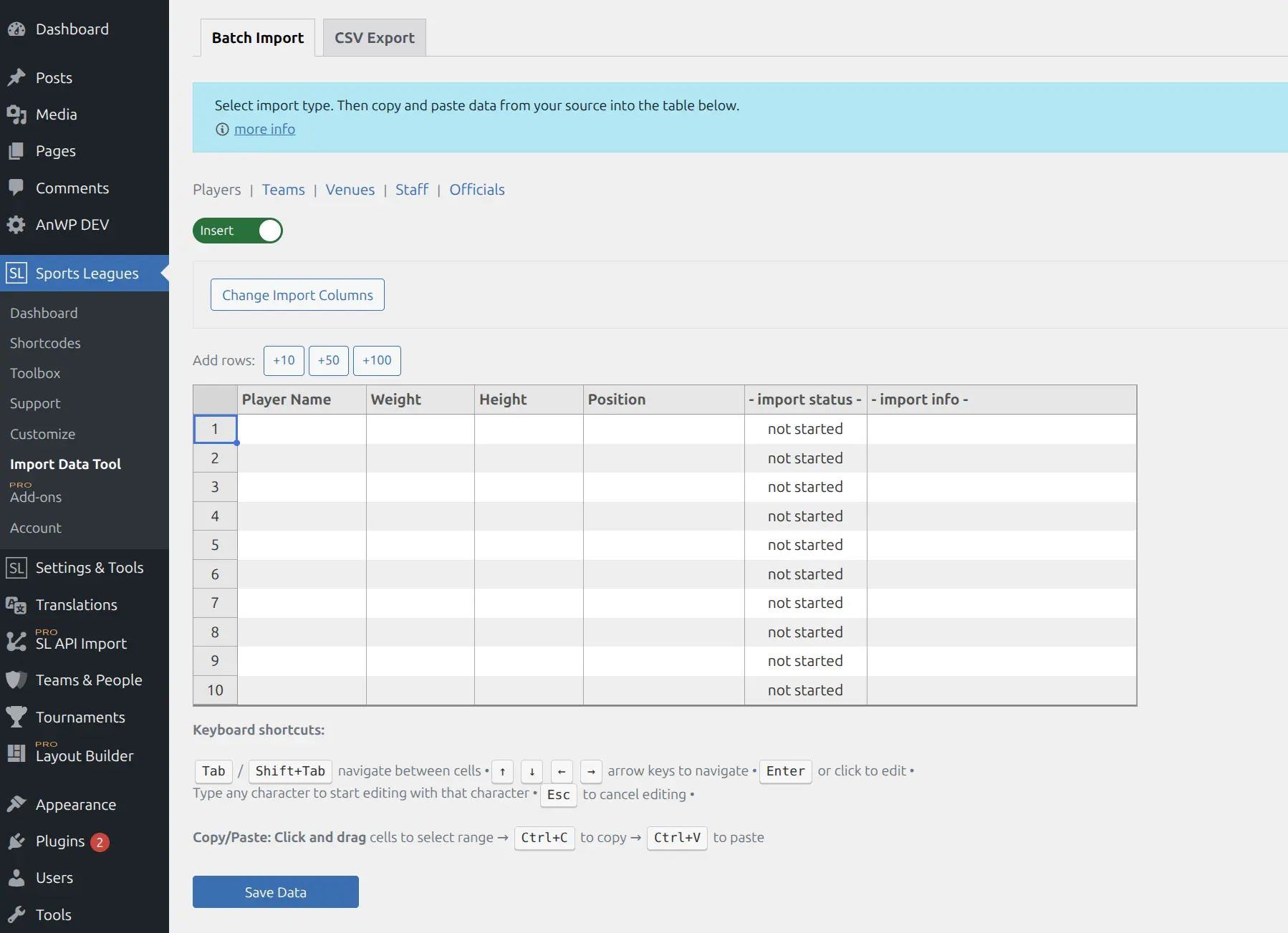
Access the Import Tool from Sports Leagues > Tools > Import in your WordPress admin menu.
📺 Video Tutorial
Watch a quick walkthrough of the import process. This video shows the Football Leagues plugin, but it works the same way in Sports Leagues.
Import Step by Step
Step 1: Select Import Type
Click one of the import type links at the top of the page:
- players – Import player profiles
- teams – Import team data
- venues – Import venues/stadiums
- staff – Import coaching staff
- officials – Import referees and officials
Step 2: Choose Import Mode
Toggle between Insert and Update modes:
| Mode | Purpose | Required Column |
|---|---|---|
| Insert | Create new records | Name field (Player Name, Team Title, etc.) |
| Update | Modify existing records | ID or External ID |
Tip
Use External ID to store your own identifiers. This makes future updates easier since you can match records by your ID instead of WordPress post IDs.
Step 3: Configure Columns (Optional)
Click Change Import Columns to customize the column layout:
- Drag columns to reorder them (match your spreadsheet order)
- Click the eye icon to show/hide columns
- Click Apply New Settings to save your preferences
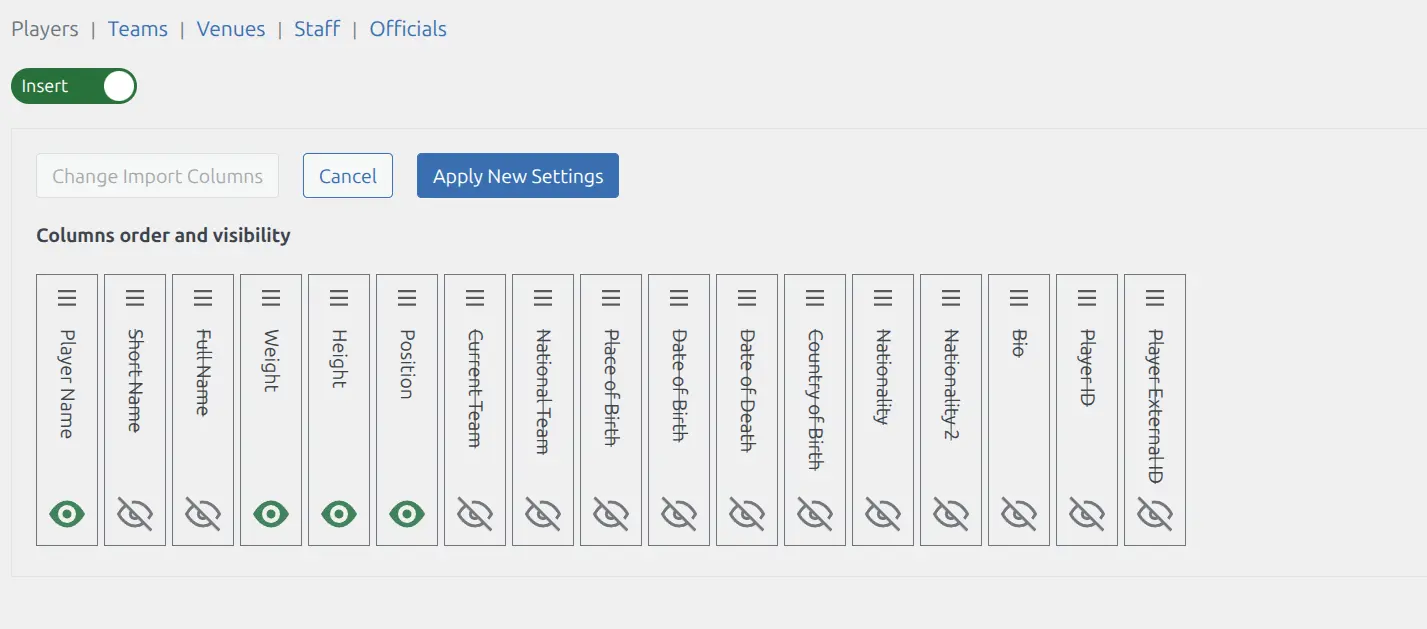
Your column preferences are saved per import type and will be remembered next time.
Step 4: Paste Your Data
- Open your spreadsheet (Excel, Google Sheets, LibreOffice Calc)
- Select and copy your data rows (without headers)
- Click in the first cell of the import table
- Paste with Ctrl+V (Windows) or Cmd+V (Mac)
The table automatically expands when you paste more rows than available. Use the +10, +50, or +100 buttons to add empty rows manually if needed.
Step 5: Import the Data
Click Save Data to start importing. A progress bar shows the import status.
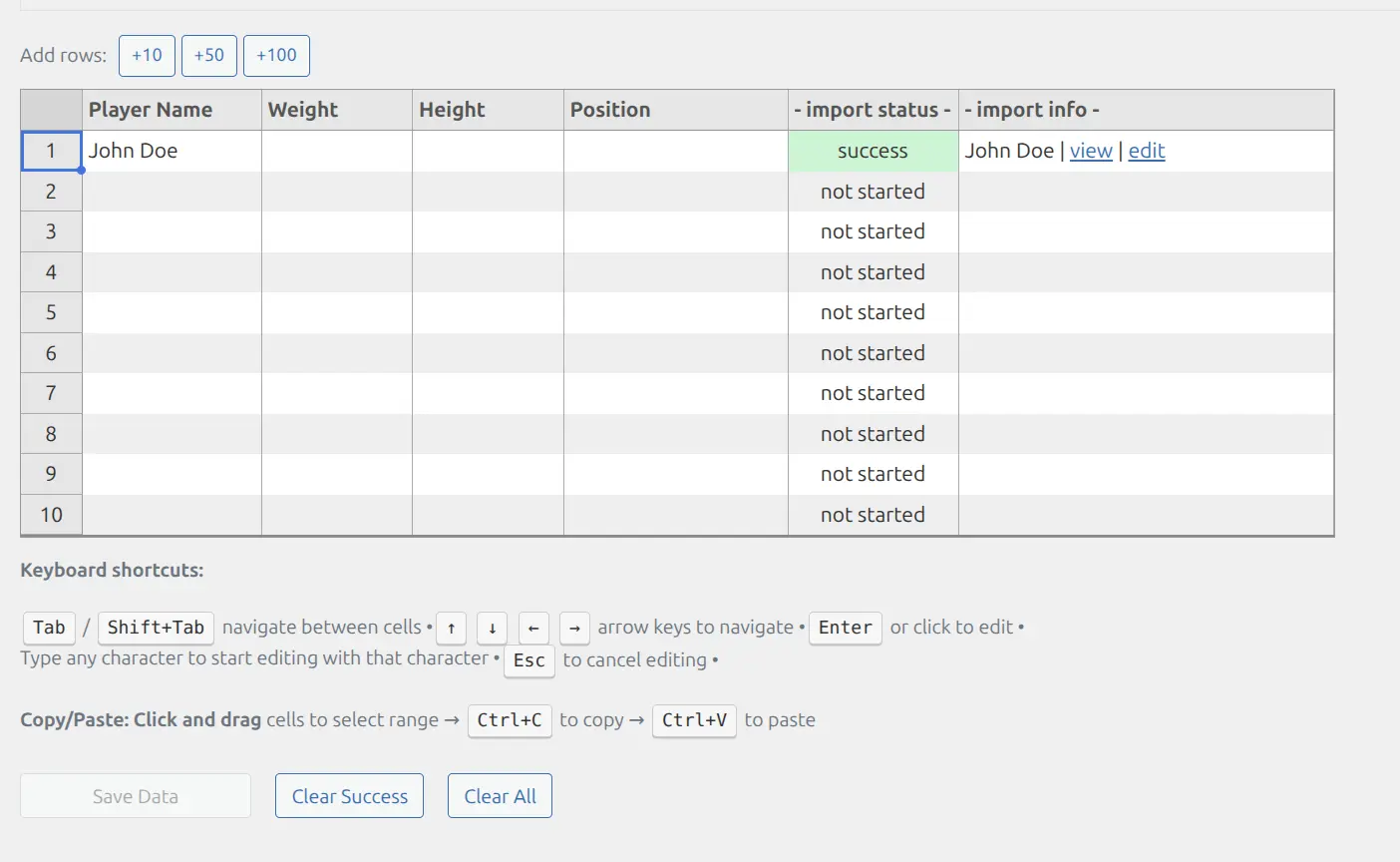
Step 6: Review Results
After import, each row shows its status in the last two columns:
| Status | Color | Meaning |
|---|---|---|
| success | Green | Record imported successfully. Links to view/edit are provided. |
| error | Red | Import failed. Error message explains why. |
After reviewing:
- Clear Success – Remove successful rows, keep failed ones to fix and retry
- Clear All – Reset the table completely
Available Columns by Type
Players
| Column | Required For | Notes |
|---|---|---|
| Player Name | Insert | Display name shown on the site |
| Short Name | – | Abbreviated name for compact displays |
| Full Name | – | Legal/official full name |
| Position | – | Dropdown of configured positions |
| Current Team | – | Dropdown of existing teams |
| National Team | – | Dropdown of existing teams |
| Date of Birth | – | Format: YYYY-MM-DD |
| Date of Death | – | Format: YYYY-MM-DD |
| Place of Birth | – | Text field |
| Country of Birth | – | Dropdown of countries |
| Nationality | – | Dropdown of countries |
| Height | – | Player height |
| Weight | – | Player weight |
| Bio | – | Multi-line text for biography |
| Player ID | Update | WordPress post ID |
| Player External ID | Update (alt) | Your custom identifier |
| Custom Fields | – | Format: cf__fieldname |
Teams
| Column | Required For | Notes |
|---|---|---|
| Team Title | Insert | Team name |
| Abbreviation | – | Short code (e.g., LAL, NYK) |
| City | – | Home city |
| Country | – | Dropdown of countries |
| Address | – | Team address |
| Website | – | Team website URL |
| Founded | – | Year founded |
| National Team | – | yes/no dropdown |
| Team ID | Update | WordPress post ID |
| Team External ID | Update (alt) | Your custom identifier |
Venues
| Column | Required For | Notes |
|---|---|---|
| Venue Title | Insert | Venue name |
| City | – | Location city |
| Address | – | Full address |
| Website | – | Venue website URL |
| Capacity | – | Number of seats |
| Opened | – | Year opened |
| Description | – | Multi-line text |
| Venue ID | Update | WordPress post ID |
| Venue External ID | Update (alt) | Your custom identifier |
Staff
| Column | Required For | Notes |
|---|---|---|
| Staff Name | Insert | Full name |
| Short Name | – | Abbreviated name |
| Job Title | – | Coach, Manager, etc. |
| Current Team | – | Dropdown of existing teams |
| Place of Birth | – | Text field |
| Date of Birth | – | Format: YYYY-MM-DD |
| Nationality | – | Dropdown of countries |
| Bio | – | Multi-line text |
| Staff ID | Update | WordPress post ID |
| Staff External ID | Update (alt) | Your custom identifier |
Officials
| Column | Required For | Notes |
|---|---|---|
| Official Name | Insert | Full name |
| Short Name | – | Abbreviated name |
| Place of Birth | – | Text field |
| Date of Birth | – | Format: YYYY-MM-DD |
| Nationality | – | Dropdown of countries |
| Bio | – | Multi-line text |
| Official ID | Update | WordPress post ID |
| Official External ID | Update (alt) | Your custom identifier |
Export Tool
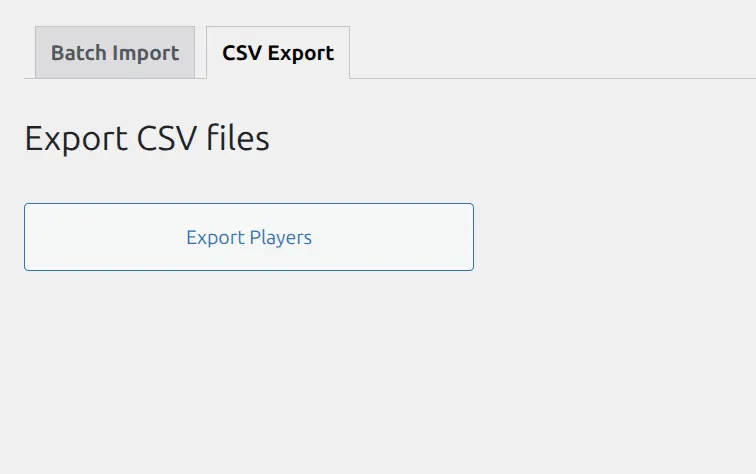
Access the Export Tool from Sports Leagues > Tools > Export.
Currently, you can export players to CSV format. Click Export Players to download a CSV file.
Opening Exported CSV Files
Open the exported CSV file with your preferred spreadsheet application:
- Microsoft Excel – Open directly or use Data > From Text/CSV
- Google Sheets – File > Import > Upload
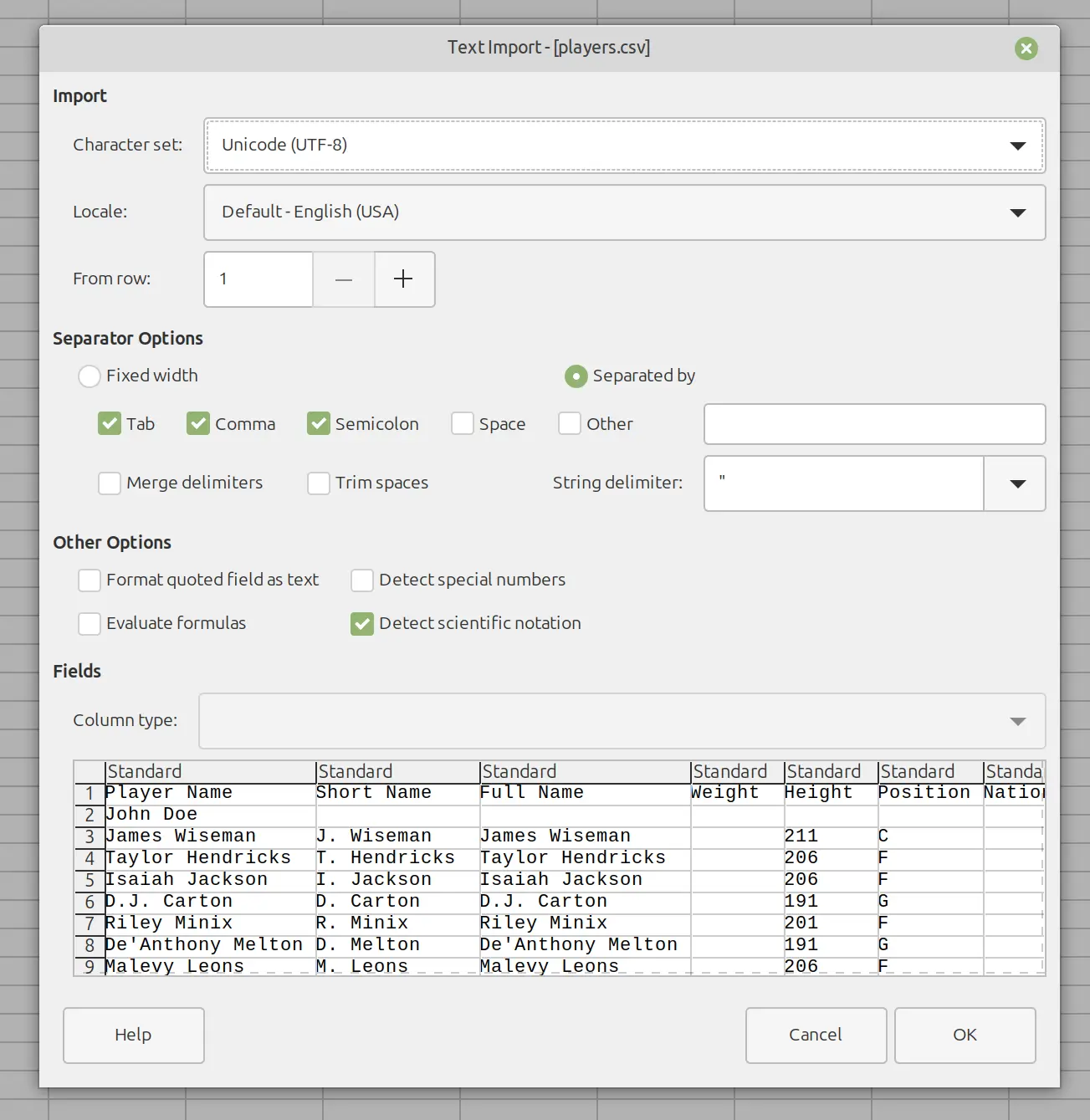
- LibreOffice Calc – Open directly, select UTF-8 encoding
Tip
When opening CSV files in LibreOffice, select UTF-8 encoding to preserve special characters in player names correctly.
Keyboard Shortcuts
| Key | Action |
|---|---|
| Tab / Shift+Tab | Navigate between cells |
| Arrow keys | Move around the grid |
| Enter | Start editing current cell |
| Type any character | Start editing with that character |
| Esc | Cancel editing |
| Ctrl+V / Cmd+V | Paste data from clipboard |
💡 Tips for Success
Data Preparation
- Match column order – Reorder columns in the import tool to match your spreadsheet, or rearrange your spreadsheet to match the tool
- No headers when pasting – Select only data rows, not the header row
- Use External IDs – Assign your own identifiers for easier updates later
- Date format – Always use YYYY-MM-DD (ISO format)
- Dropdown values – Invalid values are highlighted in orange – check valid options
Recommended Import Order
When setting up from scratch, import in this order:
- Venues (if you want to assign home venues to teams)
- Teams
- Players (can then assign to teams)
- Staff (coaches, managers)
- Officials (referees)
This order ensures that dropdown selections (like Current Team for players) have available options.
🆘 Common Errors
| Error | Cause | Solution |
|---|---|---|
| “Name is required” | Missing entity name in Insert mode | Add name to the required column (Player Name, Team Title, etc.) |
| “ID or External ID required” | Update mode needs an identifier | Add ID or External ID column, or switch to Insert mode |
| Orange highlighted cell | Value not in dropdown list | Check the dropdown for valid options |
| “Required Column is missing!” | Essential column is hidden | Click “Change Import Columns” and enable the required column |
📚 Related Documentation
- Team Roster – Assign imported players to teams
- Player Statistics – Configure stat tracking for imported players
- Standing Table – Display standings for your imported teams